KurtCast
Features

Every screen in the room, run from one app.

Songs, Bibles, slides, videos, cameras, stage screens and phones, set up for your church, school, conference, event or business. Free for Mac and Windows, and it works without the internet.

  • 234Features
  • 44Areas
  • 5Use cases
  • 0Internet needed
012 areas

Set up for your organisation

One app that fits a church, a school, a conference, an event or a business.

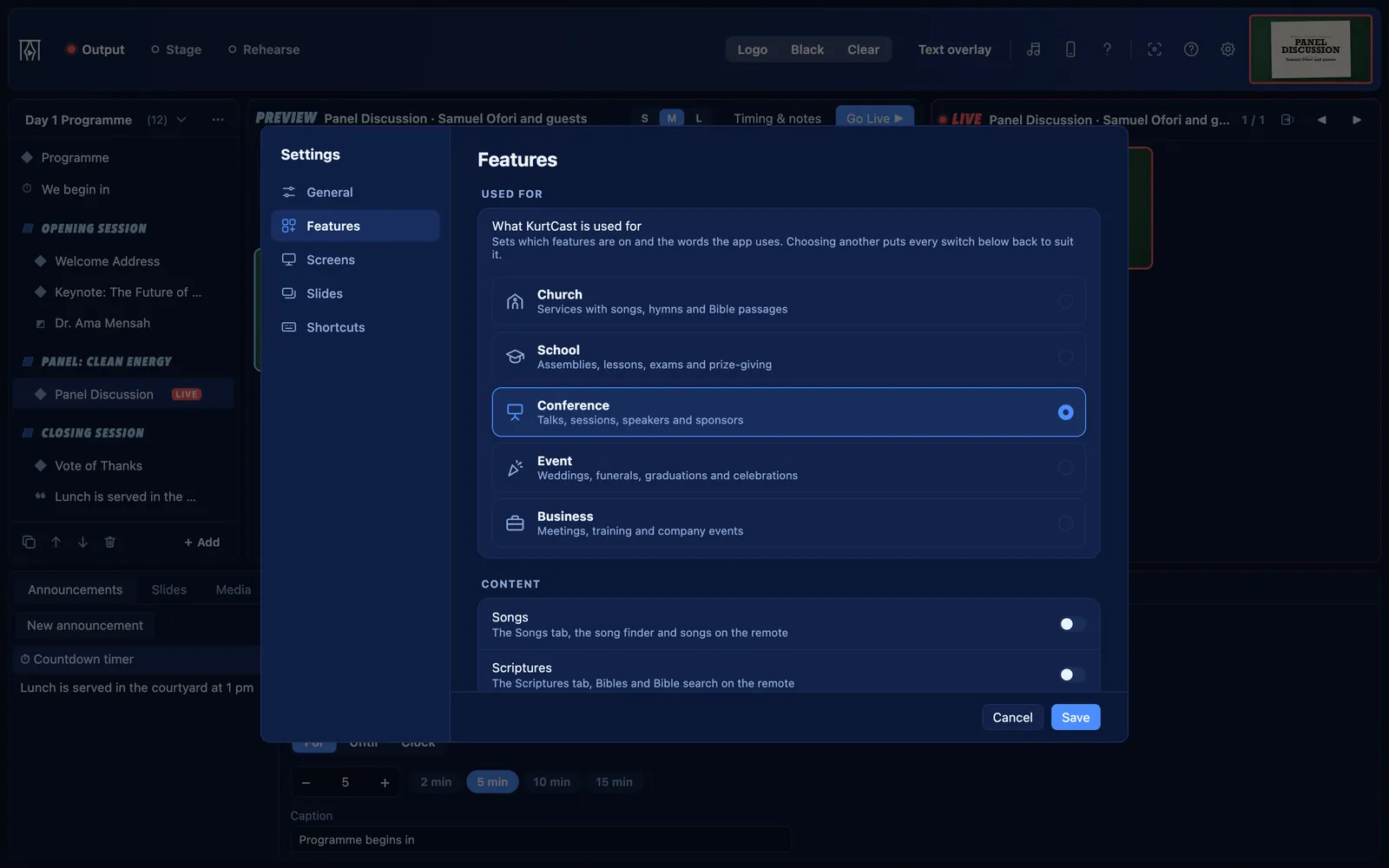
Settings → Features: the five use cases and the feature switches

Use cases and feature switches

KurtCast asks what it will be used for, switches on the parts that fit, and speaks your organisation’s language.

On from the start for:

  • Every use case
Guide: Switching features on and off
  • Five use cases: Church, School, Conference, Event and Business, each with an icon and a line on what it covers
  • Each use case starts with its own set of parts switched on
  • Settings → Features has a switch for every part: Songs, Scriptures, Song packs and hymn numbers, Second language, Announcements, Slides, Media, Documents, Cameras, Live notes, Audience questions and Quiz questions
  • Switching a part off hides it everywhere (tabs, menus, keys and the remote) and deletes nothing
  • Items already in a schedule still show when their part is off
  • Choosing another use case puts every switch back to suit it
  • Words follow the use case: congregation or audience; service, programme or meeting; church, school, organisation or event
  • Outside churches, worship themes are listed as Stage, and faith icons come last
First start

A welcome screen gets you ready in a minute. Everything can be changed later in Settings.

On from the start for:

  • Every use case
Guide: First start
  • Choose what KurtCast will be used for
  • Your organisation’s name, shown on the logo screen until you choose a logo picture
  • Start your first schedule from a schedule file, or from an empty one
  • Choose languages and Bibles (when Scriptures or a second language is on)
  • Install a song pack (when Songs and Song packs are on)
  • Steps are numbered as they show, so you only see the ones that apply
026 areas

Running the screen

Laid out the way live presentation software usually is, so a new volunteer finds their way quickly.

Schedule, Preview and Live

Pick from the tabs, line items up in the schedule, check them in Preview and send them Live.

On from the start for:

  • Every use case
Guide: Going live
  • Schedule on the left, Preview in the centre, Live on the right, and tabs of resources along the bottom
  • Stepping through Preview never changes the screen
  • Go Live, or double-click a slide, to put it on the screen at that slide
  • The Live panel says LIVE only while the output is on a screen, otherwise Off air
  • Black shows a black screen, Logo shows your logo, and Clear hides the words but keeps the background; each is independent and can be on together
  • Black and Logo lie over the live slide, so a video keeps playing underneath
  • The output opens full screen on a second display when one is connected, otherwise as a normal window
  • Choose what shows when nothing is live: the default theme’s background, black, or the logo screen
  • The header keeps to one line when busy

Transitions

Smooth changes between slides, with words that never show over each other.

On from the start for:

  • Every use case
  • Ten animations: Fade, Dissolve, Fade through black, Slide, Push up, Curtains open, Iris, Zoom, Wipe and Cut
  • Three speeds: 250, 500 or 1000 milliseconds
  • Old words fade out before new ones come in, while the background changes across the whole
  • A background that two slides share stays still
  • Black and Logo always fade
  • Chosen in the Live panel header, Themes → Defaults or Settings → Slides

Text size and backgrounds

Make any item’s words bigger or smaller and give it its own background, live.

On from the start for:

  • Every use case
  • Text size from 50% to 200%, in steps of 10%, for each song, passage, announcement or countdown
  • A background for each item, chosen in Preview
  • Changes apply on the screen at once when the item is live, and are remembered
  • Defaults for each kind of text: songs, Bible passages and the countdown timer

Rehearse mode

Practise the whole programme without touching the screens.

On from the start for:

  • Every use case
Guide: Going live
  • Slides go live in the app only
  • The Live panel says Rehearsal in amber
  • The screens, stage display and network pages keep what they showed until you turn it off
  • Slideshow music does not play in Rehearse

Keyboard shortcuts and clickers

Run everything from the keyboard or a slide clicker.

On from the start for:

  • Every use case
Guide: Keyboard shortcuts
  • →, Space or Page Down for the next slide; ← or Page Up for the previous one
  • Jump to a section by typing it: V2 Enter for verse 2, C Enter for the chorus, and B, T, I or E for bridge, tag, intro or ending
  • Cmd/Ctrl+B for Black, Cmd/Ctrl+L for Logo, Cmd/Ctrl+Shift+C for Clear
  • Enter sends the preview slide live
  • A digit or Cmd/Ctrl+K opens the song finder
  • Settings → Shortcuts changes the keys for next, previous, go live, black, logo, clear and find a song, for example to match a clicker
  • Usual keys puts any action back

Screens, projectors and safe margins

Choose where the output and stage display open, and fit any projector.

On from the start for:

  • Every use case
Guide: Connecting the projector
  • Choose the display for the output and for the stage display: choose for me, a connected display, or a normal window
  • A display that is unplugged is remembered and used again when it comes back
  • Open windows move when Settings is saved
  • Safe margin of 0–10% keeps everything that far from the edges, for projectors that crop
  • Projector shape 16:9 or 4:3; every preview follows, and the output keeps a 4:3 slide centred
  • The computer and screens do not sleep while the output or stage display is open
  • Closing the control window while the output is showing asks first
037 areas

Schedules and programmes

Plan the order of your service, programme or meeting, and reuse it.

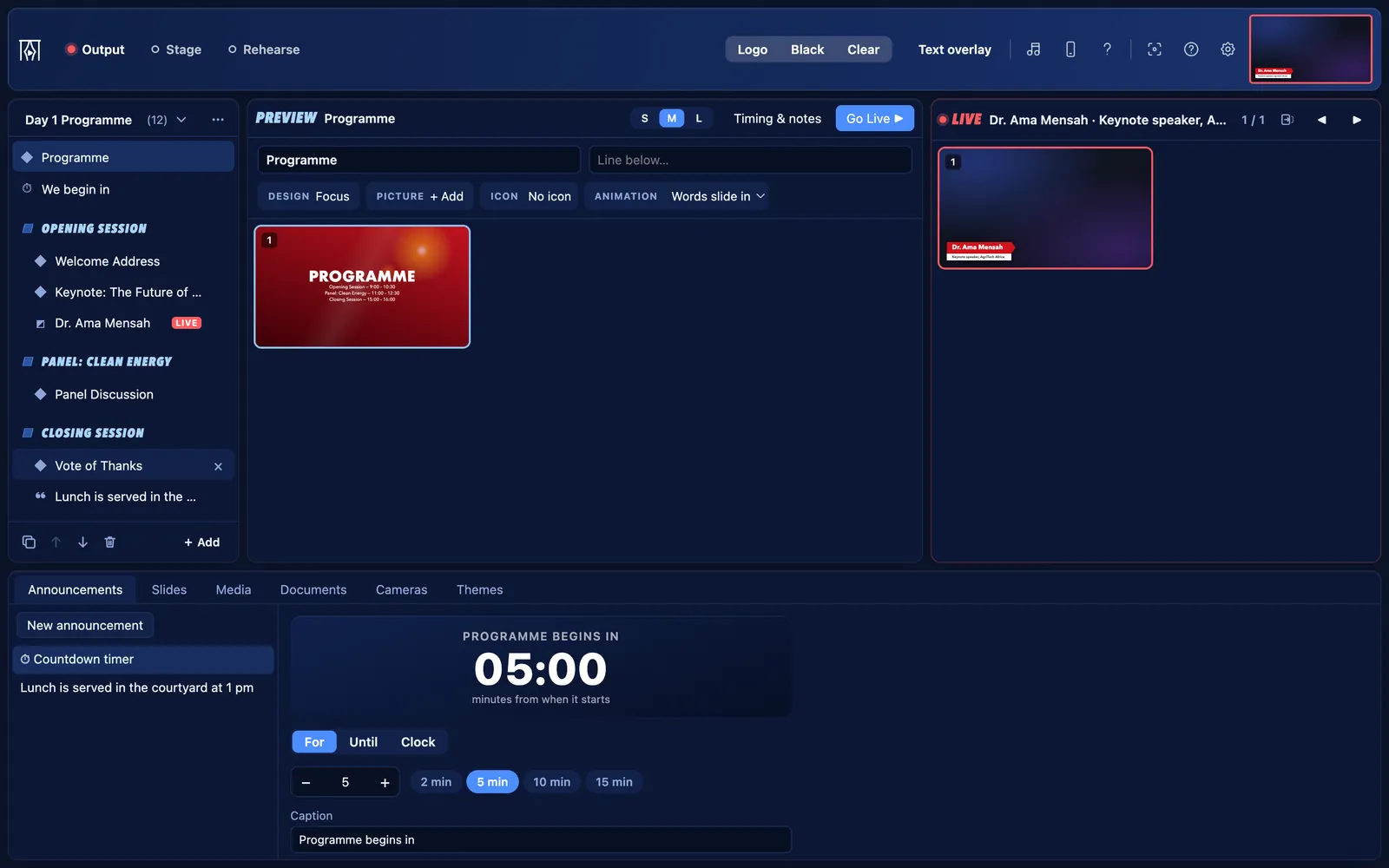
A programme with Groups and parts, and the agenda slide in Preview

Schedules

Keep as many named schedules as you like; every change saves by itself.

On from the start for:

  • Every use case
Guide: Building a schedule
  • The schedule’s name opens a list of every schedule, most recently changed first
  • New schedule, Duplicate schedule, Rename schedule…, Import schedule…, Export schedule…, Clear all items and Delete schedule
  • Taken names get a number: “New Schedule (1)”, “New Schedule (2)”
  • Duplicate, Move up, Move down and Remove for the selected item
  • Drag songs, passages, slides, media, cameras and documents into the schedule
  • Renaming or deleting a song updates every schedule

Groups and parts

Headings for each part of the programme, with title cards under them.

On from the start for:

  • Every use case
Guide: Building a schedule
  • A Group is a heading, such as “Opening session”, with its own title slide and an optional line below
  • Parts are title cards under a Group: a title, an optional line below such as a name, and the Group’s name above
  • Renaming a Group renames the line above every part under it
  • Dragging, duplicating or removing a Group takes everything under it (asking first)
  • Designs under Everyday, Formal, Warm and Fresh, shared by Groups and parts
  • Apply to whole Group gives the Group and all its parts the same design and animation
  • A picture, frame, animation and icon on any Group or part

Icons

Over 200 icons that move gently, for slides, Groups and parts.

On from the start for:

  • Every use case
  • 17 icons drawn for the app, each with its own loop of movement
  • 200 more in ten sections, such as Music and media, Teaching and study, Events and notices, and Travel
  • Search by any word, including words an icon is known by
  • “From the title” picks an icon from the slide’s words; “No icon” leaves it out
  • Icons stop moving for viewers who ask for less motion

Live notes

Type the points of a talk on the screen as the speaker makes them.

On from the start for:

Others can switch it on in Settings → Features.

Not on for your use case? Switch it on in Settings → Features.

Guide: Building a schedule
  • A switch on any Group, or + Live notes for a new one
  • A title slide with the topic large, the Group’s name above and the speaker below
  • Each Enter adds a point as its own slide and shows it at once, live if the talk is live
  • Change or remove points in Points…, or by deleting their slide
  • Turning it off keeps the points

The agenda slide

One slide listing every part of the programme.

On from the start for:

  • Every use case
Guide: Building a schedule
  • + Add → Agenda puts it at the top of the schedule
  • Titled Order of service in a church, or the programme’s word elsewhere
  • Lists each Group’s name with its line below

Timing and stage notes

Let items move on by themselves, and leave notes for the stage.

On from the start for:

  • Every use case
  • Any schedule item can move on after a number of seconds
  • Start over, to loop an item
  • Anything the operator does starts the wait again
  • Private notes for the stage display, on an item or on one slide

Schedule files

Share a programme between computers or organisations.

On from the start for:

  • Every use case
  • Export schedule… saves the open schedule, with its Groups and parts, as a .kcschedule file
  • Import schedule… opens one as a new schedule
  • The welcome screen can start from one
0410 areas

Words on screen

Songs, Bibles, slides, banners, name lists and quizzes.

Songs

A searchable song library, typed as plain text.

On from the start for:

Others can switch it on in Settings → Features.

Not on for your use case? Switch it on in Settings → Features.

Guide: Adding songs and hymns
  • Title, author, CCLI number and lyrics for each song
  • Search by title or words
  • Section lines such as Verse 1, Chorus, Bridge, Tag, Intro, Ending and Pre-Chorus, or V1, C2 and B1
  • A blank line starts a new slide
  • Click to preview, double-click to put live, or drag to the schedule
  • Edit, Undo my edits and Delete (Hide for song pack songs)
  • Edits to a live song show on the screen straight away

Importing songs

Bring songs in from any program or website.

On from the start for:

Others can switch it on in Settings → Features.

Not on for your use case? Switch it on in Settings → Features.

Guide: Adding songs and hymns
  • Import JSON…, or drop .json files on the song list
  • Reads lists of songs, song packs or single songs, with lyrics as text, verses, sections or labelled parts, and a separate chorus
  • Field names ignore case and punctuation
  • Importing the same file again updates its songs instead of adding copies
  • Songs with the same words as one already there are skipped
  • Import PowerPoint… turns .ppt and .pptx files into songs, with two-language text boxes as columns

Song packs and hymn numbers

Install a whole hymnal and find any hymn by its number.

On from the start for:

Others can switch it on in Settings → Features.

Not on for your use case? Switch it on in Settings → Features.

Guide: Adding songs and hymns
  • File → Import song pack… installs a hymnal (.json or .kcsongs)
  • File → Remove song pack… takes it out, after saving a safety copy
  • Type a hymn number anywhere to find it; the exact number comes first
  • Enter previews it, Cmd/Ctrl+Enter puts it live, Shift+Enter adds it to the schedule
  • Edit a pack song and keep your copy; Undo my edits puts the original back
  • Hidden pack songs can be shown again
  • A verse spread over several slides is joined into one, and the text shrinks to fit

Two languages side by side

Songs and Bible passages in two languages, with one switch to choose what shows.

On from the start for:

Others can switch it on in Settings → Features.

Not on for your use case? Switch it on in Settings → Features.

Guide: Two-language services
  • A main language and an optional second one, each with a name, a toolbar label and a Bible
  • The toolbar switch (for example EN | Both | TW) shows the first language, both, or the second
  • One language at a time gets the whole screen
  • The stage display always shows both
  • Twi typed for the old Akan fonts is converted to ɛ and ɔ on import

Bibles

Seven Bibles included, and any other from its USFM files.

On from the start for:

Others can switch it on in Settings → Features.

Not on for your use case? Switch it on in Settings → Features.

Guide: Finding and showing Bible passages
  • Included: King James Version (KJV), Berean Standard Bible (BSB), Asante Twi Contemporary Bible, Akuapem Twi Contemporary Bible, Ewe Contemporary Bible, Lutherbibel 1912 and Reina-Valera 1909
  • Search by reference (John 3:16, jn 3:16-18, 1 cor 13, Ps 23:1-3) or book names in either chosen Bible
  • One verse per slide, or two, with its reference shown or left off
  • Click a verse to preview from it, double-click to put it live from there
  • Drag any verse to the schedule, or Add to schedule
  • Switch the translation from the Scriptures tab; Preview and Live change with it
  • Add a Bible… reads a translation’s USFM files (a folder or .zip); copyrighted translations need your licence

Slides

Your own slides in ready-made designs.

On from the start for:

  • Every use case
Guide: Slides, themes and your own fonts
  • A line above, a title, a line below and longer words
  • A design from the gallery, an animation, an icon and a picture
  • A picture on top, in one of nine spots and any size
  • Stage notes for each slide
  • Preview, Add to schedule, Duplicate and Delete

Themes and your own fonts

Choose how words look, in your colours and fonts.

On from the start for:

  • Every use case
Guide: Slides, themes and your own fonts
  • Background as a solid colour, a gradient (five directions) or a picture
  • Font, text colour, size and alignment
  • + New theme and Duplicate selected; your themes are listed under My themes
  • Themes → Defaults sets the default theme, the background for each kind of text, and the animation
  • Double-click a theme to use it straight away for what is in Preview or live
  • Add fonts… (.ttf, .otf, .woff, .woff2); they are listed first, under Yours, in every font menu

Announcements banner

Notices that run along the bottom of the screen, over whatever is showing.

On from the start for:

  • Every use case
  • One line each, kept to use again
  • Show runs it right to left, round and round, until Stop or Banner ✕
  • Slow, Normal or Fast
  • Editing it changes the banner at once
  • Shows over songs, passages, pictures, video and the logo; Black hides it

Name lists

A slide for every person on a list, from a spreadsheet.

On from the start for:

  • Every use case
Guide: Speaker captions and name lists
  • Reads CSV, TSV or text files, or cells pasted from a spreadsheet
  • A first row such as Name, Award, Class becomes the headings
  • Finds the names column by itself, and leaves out numbering columns
  • Choose what goes above each name; the other columns go under it
  • A designed card for each person (Try another design shuffles it), or a name caption

Quizzes

A question, then its answer on the next click.

On from the start for:

Others can switch it on in Settings → Features.

Not on for your use case? Switch it on in Settings → Features.

Guide: Quizzes
  • Type questions as text, a blank line between each
  • Choices lettered A) or A., or as - lines
  • Mark the right one with * or ✓, or an Answer: line
  • Each question is two slides in one design: the question, then Answer · Question n
056 areas

Pictures, video and documents

Everything from photos to PowerPoint, shown whole and smooth.

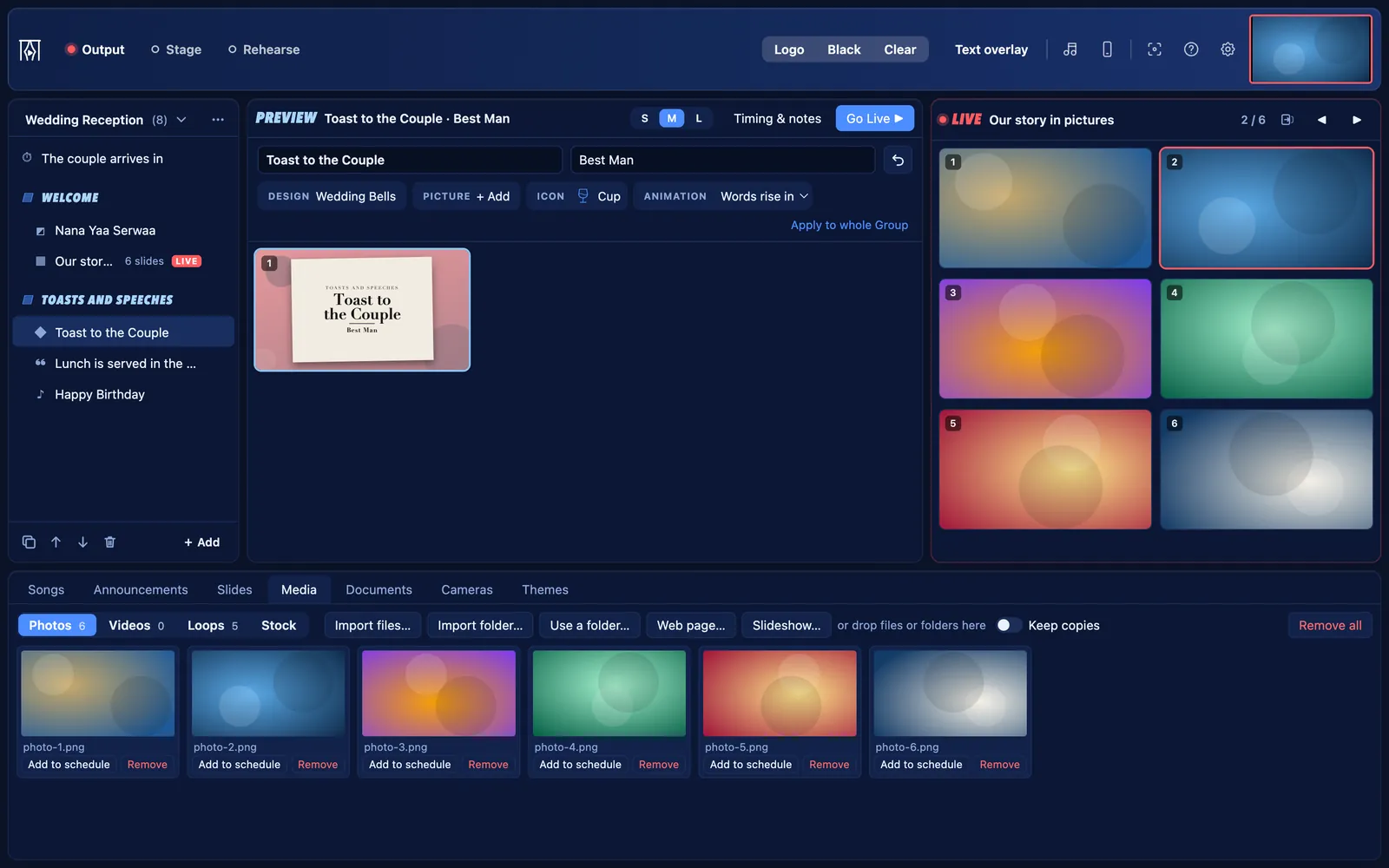
The Media tab with photos, and a slideshow live

Pictures

Pictures show whole by default, never cropped.

On from the start for:

  • Every use case
  • Whole picture, Whole with blurred edges, or Fill the space, chosen for each picture
  • iPhone photos (HEIC) work anywhere a picture does
  • Choose a picture from the Media tab or the computer, or drop one on the controls
  • Use a folder… shows a folder’s pictures and videos and picks up new ones by itself

Video

Videos play on the screen, with controls on your computer.

On from the start for:

  • Every use case
  • Play and pause, restart, a position bar, loop and volume
  • Videos play once by default; loop and volume stay set until changed
  • Black and Logo cover a video without stopping it

Slideshows with music

One slide per photo, moving on by itself, with music.

On from the start for:

  • Every use case
  • Media → Slideshow… with photos ticked in order
  • An optional time to move on, and Start over
  • Add music…, which plays while the slideshow is live

Loops, Stock and the audio player

Moving backgrounds, free stock photos, and music for the room.

On from the start for:

  • Every use case
  • Built-in backgrounds that drift gently, and loop packs brought in as themes
  • Click a loop to put it behind the song or passage in Preview
  • Stock: free Pexels photos and videos, with your own free key (one of only two things that go online)
  • Audio player: a playlist with play, pause, previous, next, seek, shuffle, repeat and volume; it floats and folds away

Documents and PowerPointBeta

PDFs and PowerPoint slide shows, page by page.

On from the start for:

  • Every use case

PowerPoint click animations are in Beta.

  • PDFs and PowerPoint slide shows (.pptx, .ppsx) in the Documents tab
  • Click animations become steps, so shapes and bullet points appear on each click (Beta)
  • PowerPoint slide transitions play as the nearest KurtCast has
  • Hidden slides are left alone

Web pages

Show a web page full screen, or behind the words.

On from the start for:

  • Every use case
  • Media → Web page… with an address and a name
  • A Sound switch and a volume slider
  • Behind the words: songs, passages and countdowns show over the page
  • Played in a locked-down window, with no camera, microphone or location (the other thing that goes online, and only the pages you add)
064 areas

Cameras and phones

Live pictures on the screen, from any camera or phone.

Cameras

Every camera the computer sees, with a live picture.

On from the start for:

  • Every use case
  • Webcams, HDMI capture cards and phones used as a webcam
  • Refreshed as cameras are plugged in and out
  • Preview, put live, add to the schedule or drag there
  • Shown whole, never cropped, without sound; a capture card’s own sound can be played
  • An unplugged camera says so and comes back by itself

Words over a camera

A camera on the screen with the words in a band along the bottom, as on a livestream.

On from the start for:

  • Every use case
  • Songs, passages, announcement text and countdowns in a dark band
  • A button for each camera in the toolbar switches the picture without dropping the words
  • A new camera fades in once its picture plays, so a switch never shows black
  • Pictures, videos, Groups and parts still fill the screen

Speaker captions

A speaker’s name and role along the bottom left.

On from the start for:

  • Every use case
Guide: Speaker captions and name lists
  • Name and optional role, kept to use again
  • Preview, Show (or Enter) and Add to schedule
  • Over a camera, on a theme’s background, or in the OBS and vMix overlay
  • The name and role go to the stage display and remote too

Phones as cameras

Up to 3 phones over your own Wi‑Fi, with no app to install.

On from the start for:

  • Every use case
Guide: Using a phone as a camera
  • Cameras → Add a phone… shows a QR code for each network the computer is on
  • A one-time certificate, with a fingerprint to check on the computer’s screen
  • Name, back or front lens, and 1080p or 720p on the phone
  • Up to 3 phones at once; names are kept unique
  • Tally: a red ring and LIVE while the phone is on the screen
  • The picture goes straight from phone to computer over the local network, never the internet
  • A phone that drops off comes back by itself
  • KurtCast Companion does the same with no certificate
076 areas

Around the room

Stage screens, remotes, audience questions, countdowns and your livestream.

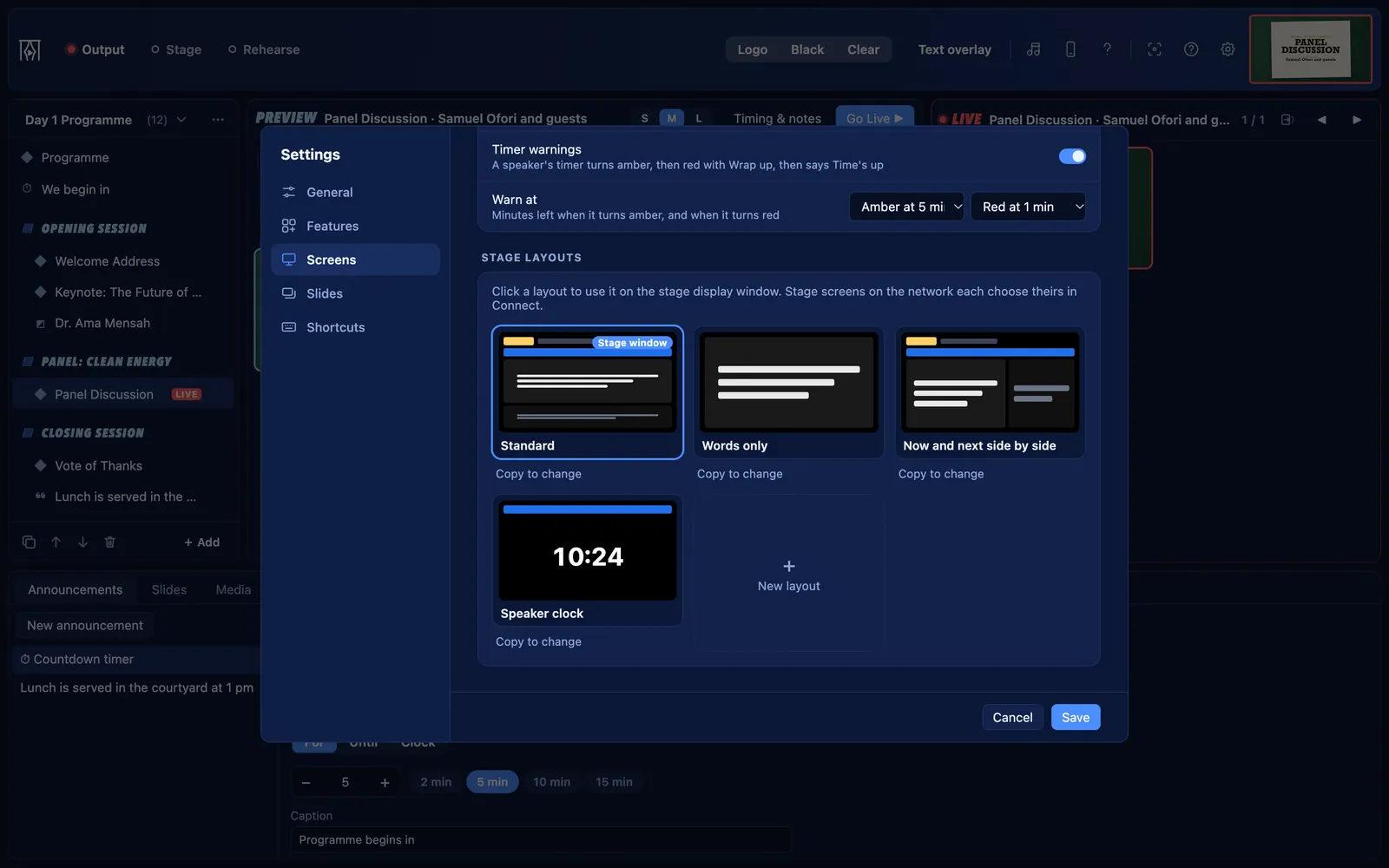
Settings → Screens → Stage layouts: Standard, Words only, Now and next, and Speaker clock

Stage display

A screen for speakers and musicians.

On from the start for:

  • Every use case
Guide: Stage display, layouts and timer warnings
  • Clock, item title, current slide, next slide, the main screen’s state and a message from the operator
  • Layouts: Standard, Words only, Now and next, and Speaker clock
  • Make your own layouts, or place parts by hand
  • Notes, the full song with the live slide marked, and pictures and PDF pages
  • 12- or 24-hour clock, four word sizes, and the next slide on or off
  • Opens on its own display, or in any browser on the network, each with its own layout

Countdowns and timers

Count down to the start, time a speaker or run an exam.

On from the start for:

  • Every use case
Guide: Countdowns and the exam clock
  • A number of minutes, or a time of day
  • Designs: Classic, Ring, Progress bar, Flip cards, Blocks, Minimal and Exam clock
  • Exam clock: time remaining large, with the time now and the finishing time
  • Clock mode shows the time of day; Count on past zero shows the time over in red
  • A picture or video behind the clock
  • Stage only: a timer for the speaker while the screen shows anything else
  • Timer warnings on the stage: amber, then red with Wrap up, then Time’s up (adjustable)
  • −1 min and +1 min while it runs; Keep… saves it to use again

Remote control and chat

Run the screen from any phone or tablet, with no app.

On from the start for:

  • Every use case
Guide: The remote control on a phone
  • What is live, its slide, the next slide and any countdown
  • Large Previous and Next, and Black, Logo and Clear
  • Schedule, Songs and Bible search (where those are on), Countdown and Stage tabs
  • Countdown −1, +1 and +5 from the remote
  • Chat with the operator and other remotes, with quick phrases and a chime
  • Add it to the phone’s home screen

Audience questions

People send questions from their phones; you choose which to show.

On from the start for:

Others can switch it on in Settings → Features.

Not on for your use case? Switch it on in Settings → Features.

Guide: Audience questions
  • Taking questions on and off
  • Show link on screen: a slide with a QR code and “Scan to ask a question”
  • Questions wait, oldest first; Preview, Show or Dismiss each one
  • Shown in a band, tagged QUESTION with the asker’s name
  • A chime for each, unless Chime is off
  • The question page has its own code and can only send a question

Overlay for OBS and vMix

The live words over your livestream, on a see-through page.

On from the start for:

  • Every use case
Guide: The OBS and vMix overlay
  • Added as a Browser source at 1920 × 1080
  • Songs, passages, announcement text, countdowns and captions
  • In a band along the bottom, or as on the screen with &style=full
  • The banner too, unless &banner=off
  • Black, Logo and Clear take the words away

Your own network

Everything connects over your Wi‑Fi, and only with a code.

On from the start for:

  • Every use case
  • Off until you switch it on in the Connect window
  • QR codes and links for the remote, each stage layout and the overlay, with a count of who is connected
  • Every link carries a code; New code stops every old link
  • Everything a remote sends is checked before the app acts on it
  • Nothing goes over the internet
083 areas

Safe and simple

Backups, a PIN lock, and a look that suits your room.

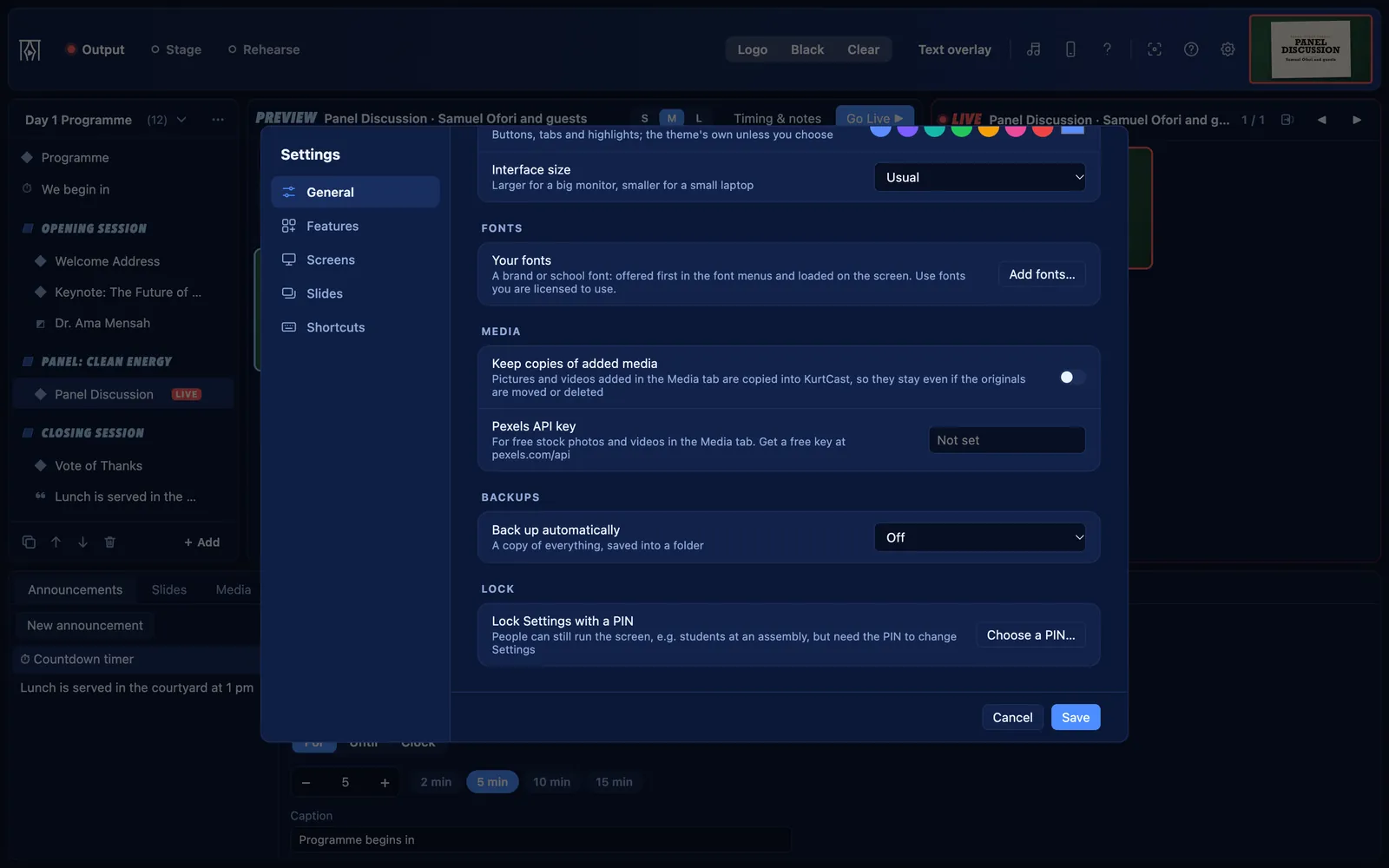
Settings → General: automatic backups, with the PIN lock below

Backups

Never lose your library.

On from the start for:

  • Every use case
Guide: Backups and moving to another computer
  • Automatic backups once a week or each time KurtCast quits, into a folder you choose
  • Back up now, and the newest backup’s time
  • KurtCast never deletes backups
  • File → Back up library… saves everything in one .kcbackup file
  • Restore: Add to this library, or Replace this library
  • A safety copy is saved before any restore or big change

PIN lock

Lock Settings on a shared computer.

On from the start for:

  • Every use case
Guide: Locking Settings with a PIN
  • A PIN of 4 to 8 digits
  • Settings asks for it before opening; anyone can still run the screen
  • Kept only as a hash

Appearance and help

Make the app comfortable, and find help inside it.

On from the start for:

  • Every use case
  • Dark, Light or Match the computer for the control window
  • An accent colour of your own, and the interface size
  • Help: every part in a sentence or two, searchable, and a short tour
  • Reduced motion turns animations off
  • Works fully offline; goes online only for Stock and web pages, when you choose
Free for Mac and Windows

All of it, free

Set it up in a minute and put your next programme on screen. No account, no internet needed.

Version 0.1.0 · Windows 127 MB · Mac 230 MB · How to install it