Applies to:
Steps
Switch the network on
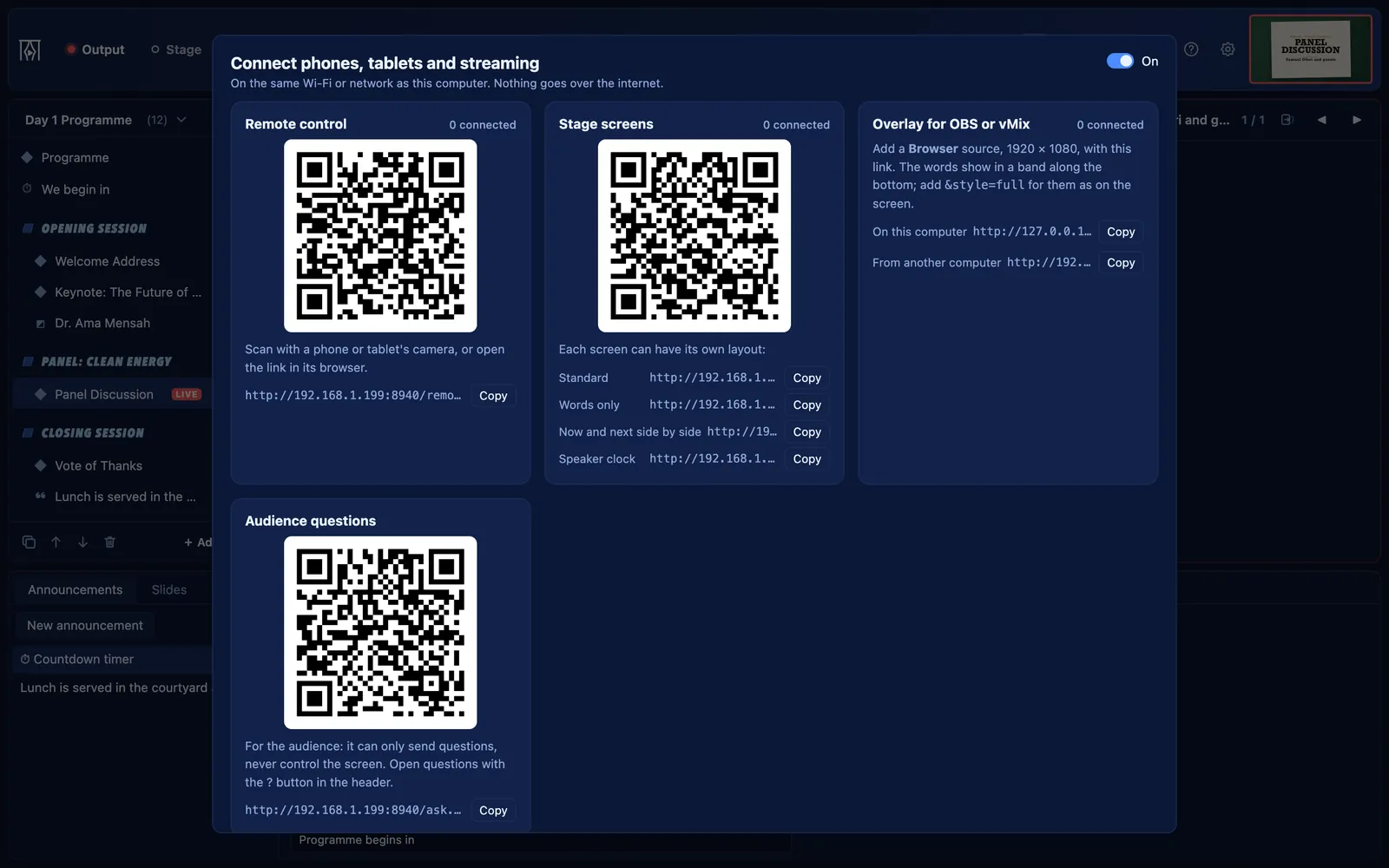
Open the Connect window (the phone icon in the header) and switch it on. Nothing goes over the internet: it answers only on your own network.
Scan the remote’s QR code
With the phone on the same Wi‑Fi, scan the remote’s code. Every link carries a code, so only people you give it to can connect.
Run the screen
The remote shows what is live and what comes next, with large Previous and Next buttons and Black, Logo and Clear. Its tabs hold the schedule, songs and Bible search (where those are on), countdowns, the stage message and Chat.
Chat with the operator
Give a name once, then send messages to the operator and the other remotes, or tap a quick phrase.
Add it to the home screen
Use the browser’s Add to Home Screen, and the remote opens in one tap next time.
Good to know
- If a link was shared too widely, press New code in the Connect window. Every old link stops working.